Your smartphone can do much more than make calls, send messages, and browse the internet. With a few simple setting changes, you can make everyday tasks faster, reduce distractions, and create a more comfortable experience.
Many useful features are already built into modern phones, but they are often hidden in menus or turned off by default. The exact names and locations may vary between iPhone and Android devices, but the ideas are similar. Try the settings below and keep the ones that fit your routine.
Adjust Text Size and Display Settings
Small text can make reading messages, emails, and websites uncomfortable. Increasing the text size is one of the easiest ways to improve your phone experience.
Look for settings such as:
– Text size or font size
– Display size
– Bold text
– High contrast
– Screen zoom
You can usually find these options under Display or Accessibility. Increase the size gradually so that text is easier to read without making apps feel crowded.
Many phones also include a dark mode. It changes light backgrounds to darker colors, which some people find more comfortable in low-light environments. You can set dark mode to turn on automatically at a certain time, such as sunset.
Turn On Do Not Disturb
Notifications can interrupt work, meals, reading, and sleep. Do Not Disturb lets you silence most alerts while still allowing important calls or messages to come through.
You can often create a schedule for:
– Work or study hours
– Bedtime
– Meetings
– Driving
– Exercise
– Family time
Most phones also let you allow calls from selected contacts. This gives you more control without requiring you to silence every alert manually.
If you do not want to use a full schedule, try turning on Do Not Disturb for a short period. Even 30 minutes without interruptions can make it easier to focus on one task.
Customize the Lock Screen
The lock screen is the first screen you see when you pick up your phone. Adjusting it can provide useful information at a glance.
Depending on your device, you may be able to add:
– Weather information
– Calendar events
– Battery status
– Timers
– Shortcuts to frequently used tools
– Emergency contact information
You can also remove unnecessary notifications from the lock screen. This keeps private details from appearing where others might see them and reduces visual clutter.
Choose a simple wallpaper with good contrast so that the time and notifications are easy to read.
Add Emergency Information
Many smartphones allow you to store emergency information that can be viewed from the lock screen. This may include an emergency contact, allergies, or other details you choose to provide.
Look for Emergency, Safety, or Medical ID settings. You can decide which information is displayed without unlocking the phone.
It is also a good idea to review your emergency contact list from time to time. Make sure the people listed are current and know that they have been added.
Use Voice Typing
Typing on a phone can be slow, especially when writing longer messages or notes. Voice typing lets you speak instead of using the keyboard.
To use it, tap the microphone icon on your keyboard and begin speaking clearly. Voice typing can be helpful for:
– Creating shopping lists
– Writing quick emails
– Recording ideas
– Sending messages
– Adding notes to a calendar
Speak punctuation when needed, such as “period” or “question mark.” Always review the text before sending it, since voice typing may misunderstand names, places, or unfamiliar words.
Set Up Text Replacement
If you often type the same words or phrases, text replacement can save time. You create a short shortcut that expands into a longer phrase.
For example, you might create shortcuts for:
– Your email address
– A work signature
– A mailing address
– A common response
– A frequently used website
– Directions to your home
On many devices, this option is found in Keyboard settings. Choose shortcuts that are easy to remember but unlikely to appear by accident in normal writing.
Organize Apps Into Folders
A crowded home screen makes it harder to find the apps you need. Organize similar apps into folders, such as:
– Communication
– Travel
– Shopping
– Photos
– Work
– Entertainment
– Home
Keep your most-used apps on the first screen and move less frequently used apps to another page or the app library. You can also remove apps from the home screen without deleting them.
A simple layout reduces swiping and helps you find tools more quickly.
Use Widgets for Quick Information
Widgets display information without requiring you to open an app. Common examples include weather, calendar events, reminders, battery levels, and news updates.
Add only the widgets you genuinely use. Too many can make the screen busy and may provide more information than you need.
A useful setup might include a calendar widget for upcoming events and a reminder widget for tasks due that day. This can help you stay organized with fewer taps.
Improve Battery Life
A few settings can help your battery last longer during the day.
Try these adjustments:
– Lower screen brightness or use automatic brightness
– Reduce screen timeout length
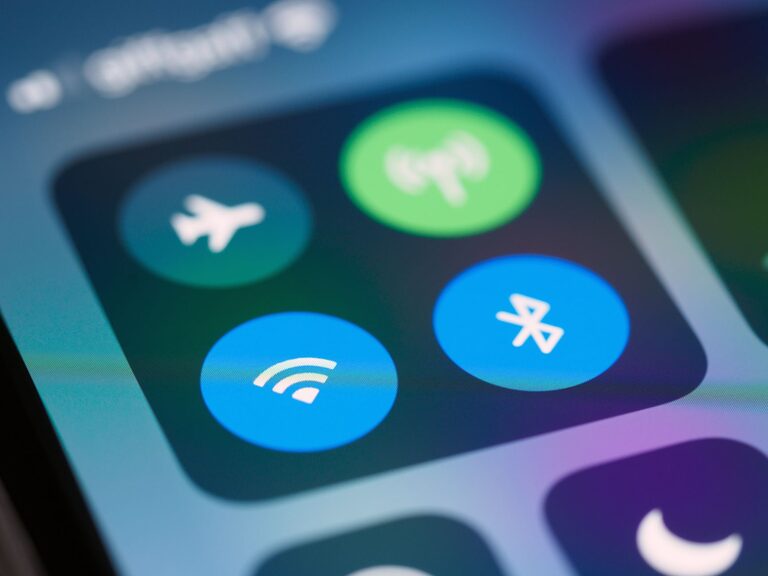
– Turn off Bluetooth when it is not needed
– Disable background activity for rarely used apps
– Use battery saver mode when necessary
– Remove live wallpapers or unnecessary animations
You do not need to turn off every feature. Start by checking the battery settings to see which apps use the most power. If one app consistently uses a large amount of battery in the background, review its permissions and background activity.
Make Your Phone Easier to Find
Misplacing a phone is frustrating, but built-in device-finding tools can help. Turn on the feature that lets you locate, lock, or play a sound on your phone from another device.
You may also want to:
– Add a clear label or contact method to the lock screen
– Keep location services enabled for device-finding features
– Use a case with a noticeable color
– Set a familiar ringtone for incoming calls
Test the device-finding feature before you need it. Knowing how it works can save time when your phone is hidden under a cushion or left in another room.
Review Notification Settings
Not every app needs permission to send alerts. Open your notification settings and turn off notifications that are rarely useful.
Keep alerts for services that matter to you, such as calendars, messages, reminders, or delivery updates. For other apps, consider allowing notifications only when you open them.
You can also choose whether notifications show previews. Hiding message previews can reduce distractions and provide more privacy on the lock screen.
Create a Simple Daily Setup
The best smartphone settings are the ones that support your normal routine. Start with one or two changes rather than adjusting everything at once.
A practical daily setup might include:
– Larger text for comfortable reading
– Do Not Disturb during focused work
– A calendar widget on the home screen
– Voice typing for quick notes
– Folders for better app organization
– Limited notifications
– A scheduled battery-saving mode
Review your settings every few months as your habits change. A few minutes of customization can make your phone feel less distracting, easier to use, and better suited to your everyday tasks.
About the Author